guides
Add Team Members
Add another person to your Excloud organization and manage their access with IAM policies.
You can add teammates to your organization from the Accounts page in the Excloud console. Each person should use their own account; do not share login credentials or API keys.
Before you begin
You need to be the organization owner or have a policy that allows the iam:account:invite action. See IAM Policies and the Permissions Reference for access-control details.
Invite a team member
- Log in to the Excloud console.
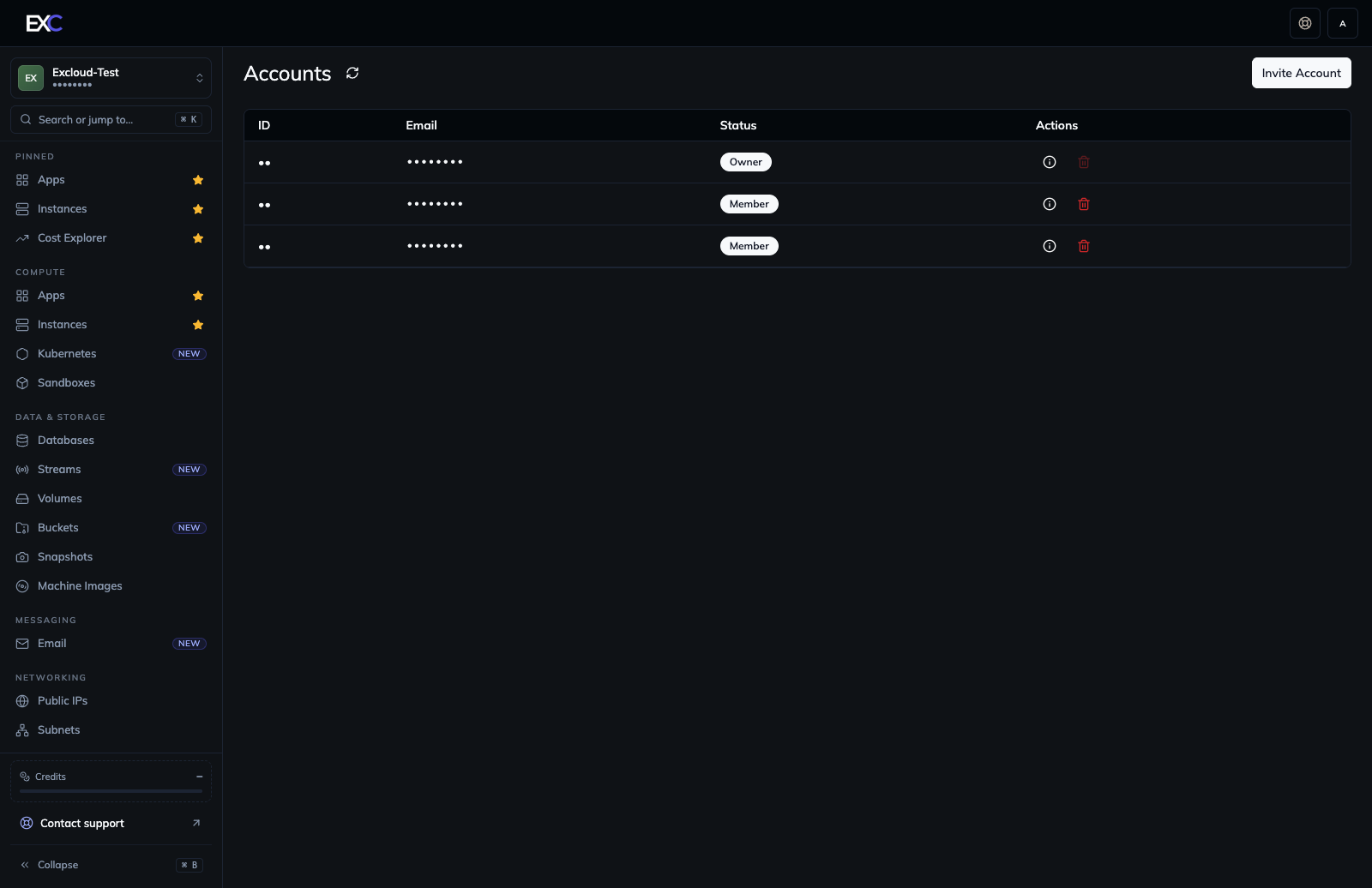
- In the sidebar, go to Accounts.
- Select Invite Account.
- Enter the teammate’s email address.
- Select Invite Account to send the invitation.
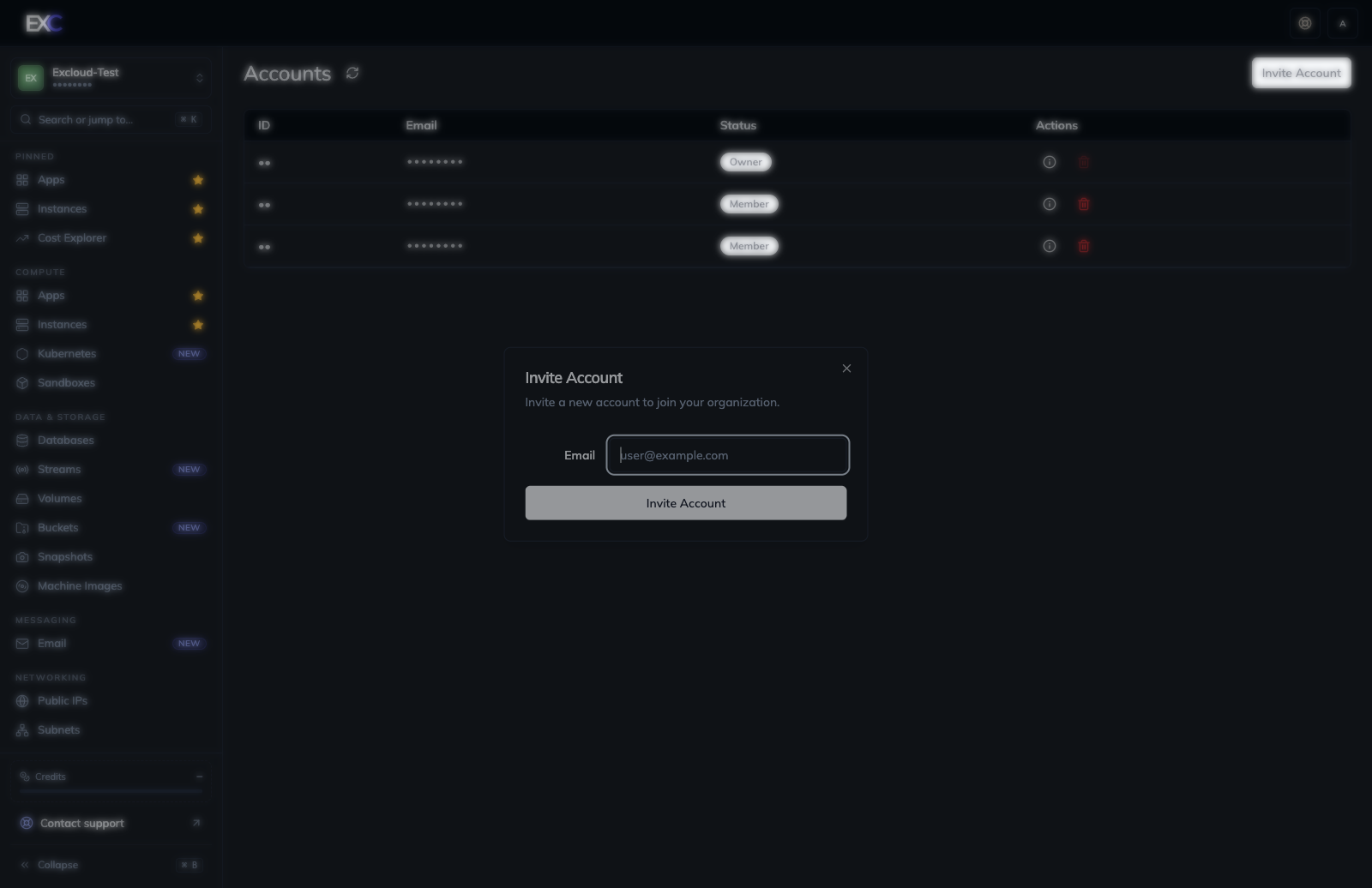
The recipient should follow the instructions in the invitation email. After they join, their account appears on the Accounts page with the Member status.
Manage the member’s access
An invitation adds the person to your organization. Their effective access is determined by the IAM policies bound to their account.
Follow the IAM Policies guide to grant only the actions they need. Start with least privilege rather than granting full administrative access. Policy changes can take about 10 seconds to take effect.
Remove a team member
On Accounts, find the member and select the red remove icon in the Actions column. Review the confirmation carefully before removing the account.
Removing a person from the organization is separate from rotating shared credentials. If the member had access to shared API keys, SSH keys, or secrets, rotate those credentials as well.
Troubleshooting
- Invite Account is unavailable or the request is denied: ask the organization owner to grant
iam:account:invite. - The invitation email does not arrive: verify the address, check spam or junk folders, and contact [email protected] if it still does not arrive.
- The member can join but cannot use a service: review their IAM policy bindings and allow up to 10 seconds for policy changes to propagate.